Browse the Explore library
Open the library
The library is on the NodeBook website. Get there in either of these ways:
- On the website, click Explore in the top bar.
- In the app, open the account menu and click Explore library.
You don't need an account to browse it.
Find a NodeBook
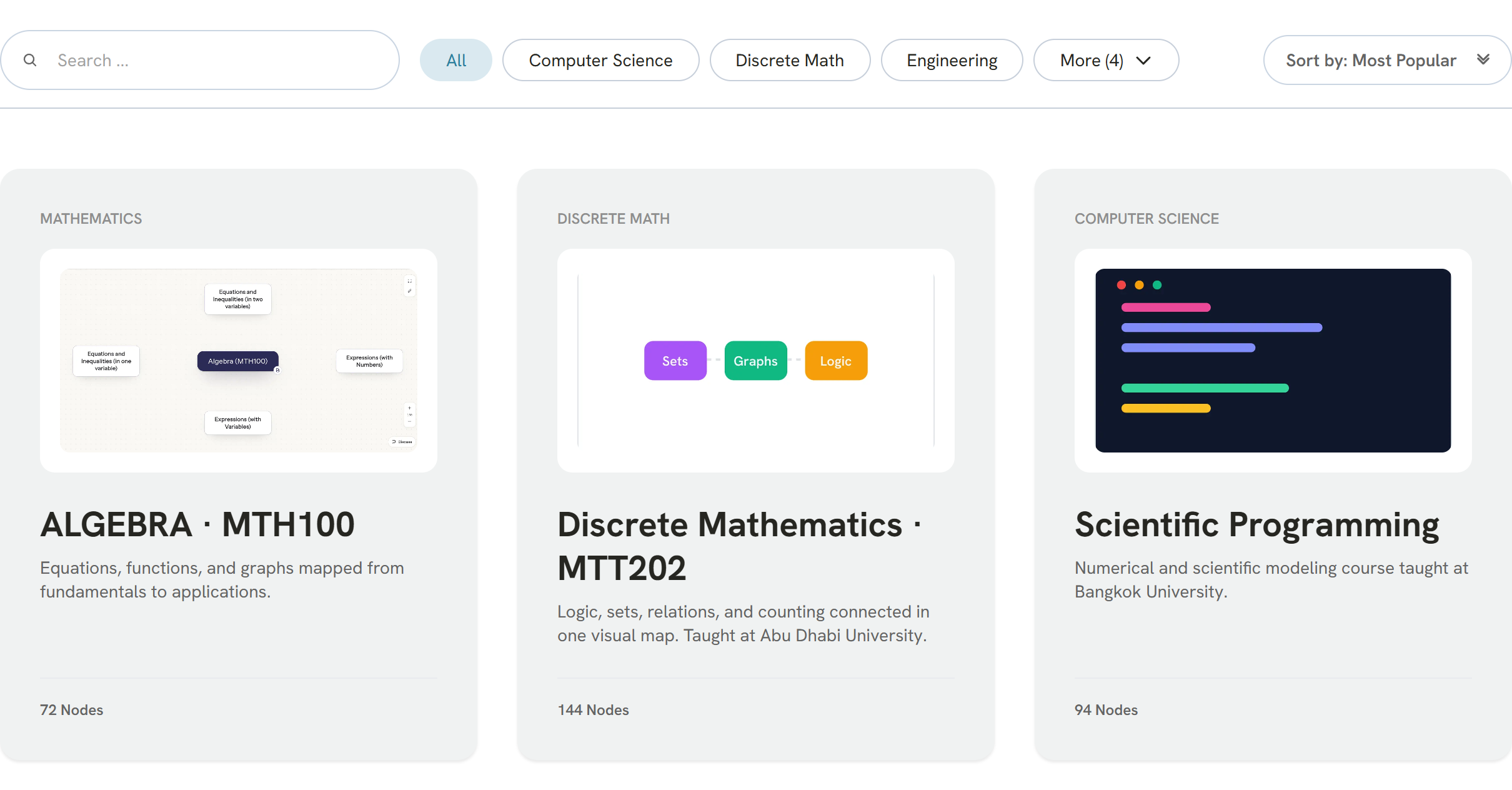
- Trending this Week at the top shows what people are opening most right now.
- Click a category to see only NodeBooks on that subject. More shows the rest of the categories.
- Use Sort by to order them by Most Popular, Newest First, Alphabetical or Highest Node Count.
- Click the search box to search NodeBooks by name.
Each card shows the NodeBook's title and how many nodes it has. Click Load More NodeBooks at the bottom to see more.
Open a NodeBook
Click a card to open it in NodeBook. You can move through its nodes and read its tabs just like your own, in view-only mode: the node path says View only, and nothing you do changes it.
A few cards link to an app or another website instead. Those open in a new tab.
If you aren't logged in, the top bar shows Log in and Sign up free. You can read without an account, but you need one to join a discussion or build your own NodeBook.
Keep a copy in your own NodeBook
Want to add your own notes to a public NodeBook? Copy its link (click the node's name at the end of the node path and choose Copy link to this node), go back to your NodeBook and import it with New → NodeBook link. The copy is yours to change. See Import a node from a NodeBook link.
To get back to your own NodeBook, open the account menu and click My NodeBook.
Was this article helpful?