Read mode and Edit mode
2 min readUpdated 10 days agoBy NodeBook Team
💡 Pro Tip:
Study in Read. Clicks and keys only move you around, so nothing changes by accident.
Switch modes
On your own NodeBook, the top bar has a Read | Edit switch. Click the mode you want. On a phone it's a single button that shows the current mode; tap it to switch.
Read
Read is for moving through your NodeBook and studying it.
- Clicking a child node moves into it. Double-click it to move in and open its content in one go.
- Clicking the central node opens its content.
- If a node has content but no children, clicking it opens that content.
- If you try to open a node with nothing in it, it gives a little shake and says This node has no content yet. Turn on editing to add some. Click Enable Editing in that message to switch to Edit and open it.
- The keyboard moves you around the tree. See Navigate with the keyboard.
Edit
Edit is for building and changing your NodeBook.
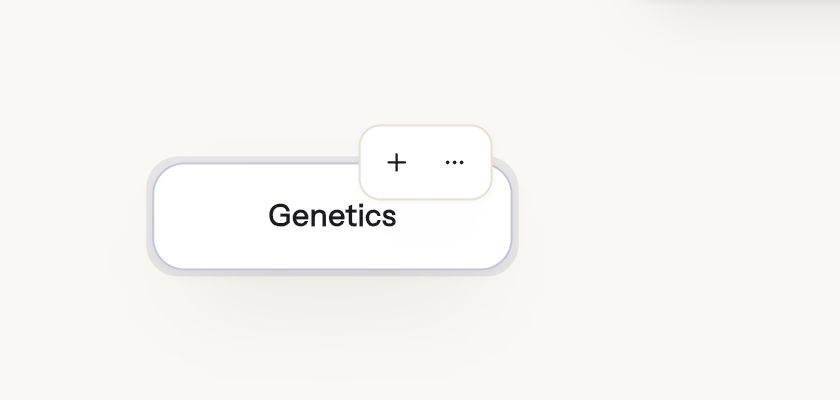
- Point at a node to see + (Add child node) and ⋯ (More node actions).
- Clicking a child node moves into it, and clicking it twice opens its content, even when it's still empty.
- Tabs show the formatting toolbar, so you can write and add images, video, audio and files.
- The top bar shows whether your changes are saved.
Someone else's NodeBook
When you open a NodeBook that someone shared with you, there's no Read | Edit switch. The node path says View only, and you can read everything the owner has shared, but not change it.
Was this article helpful?