Delete a node
1 min readUpdated 9 days agoBy NodeBook Team
💡 Pro Tip:
Not sure? Use Hide in viewer instead. The node stays on your canvas but disappears for everyone you share with.
Delete a node
- Open the node's menu: point at it and click ⋯, or right-click it.
- Choose Delete.
- Read the confirmation. It tells you how many tabs and child nodes will be deleted with it.
- Click Delete.
You can also select the node and press Delete or Backspace, or use Delete this node at the bottom of Node settings.
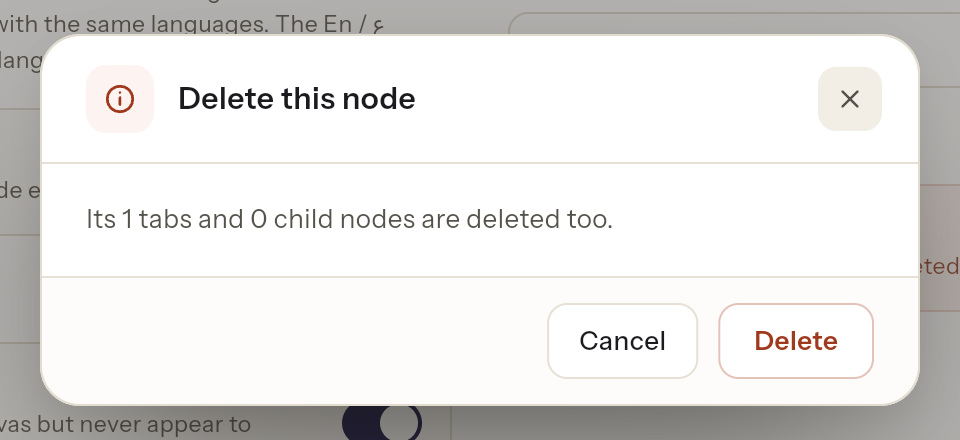
What is deleted
The node, all of its tabs, and every node under it, with their tabs.
Deleting is permanent. It can't be undone. If you might need the content later, export it to PDF first, or duplicate the node somewhere safe.
What you can't delete
- The central node can't be deleted while you're in it. Go up one level so it appears on the ring, then delete it there.
- The top of your NodeBook can't be deleted at all.
Essential Canvas Controls:
Was this article helpful?