The node menu
2 min readUpdated 9 days agoBy NodeBook Team
Open the menu
- Point at a node and click ⋯ (More node actions). This button shows in Edit mode.
- Or right-click the node.
- Or select it and press Shift+F10, or the Menu key on your keyboard.
On a phone, tap a node to select it, then tap ⋯ in the bar that appears above it. The menu opens as a sheet, with four big buttons at the top: Open, Child, Share and Discuss.
The menu's first line shows the node's depth, how many child nodes it has and how many tabs.
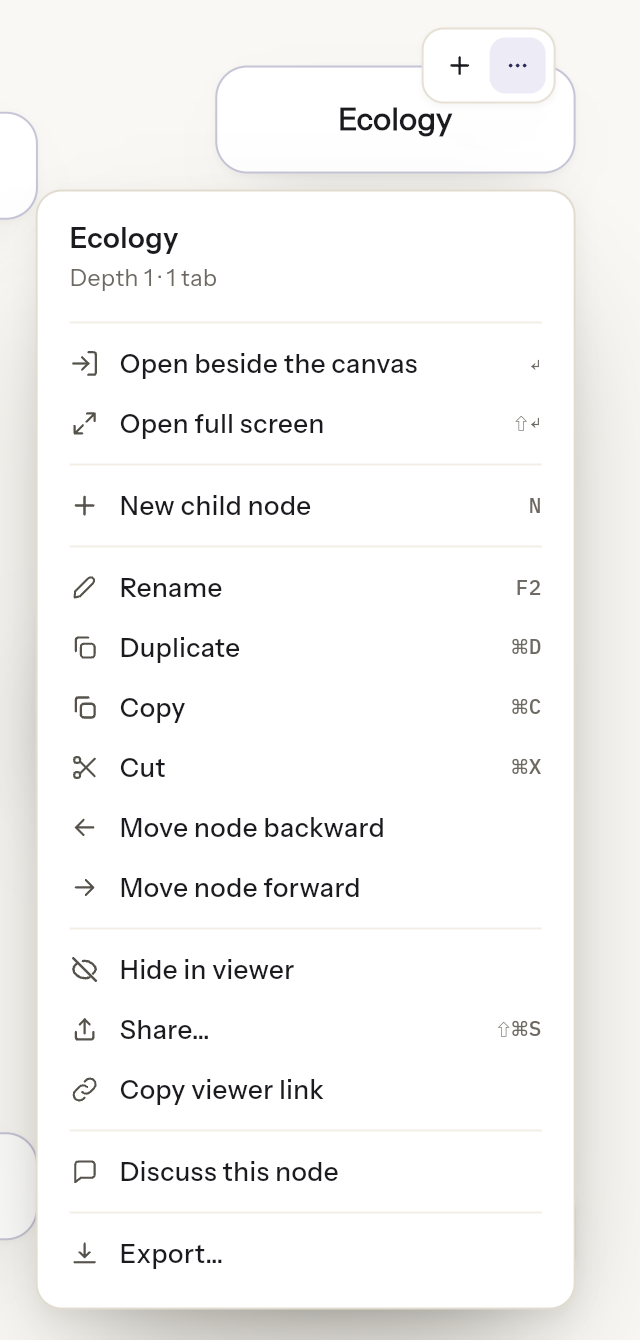
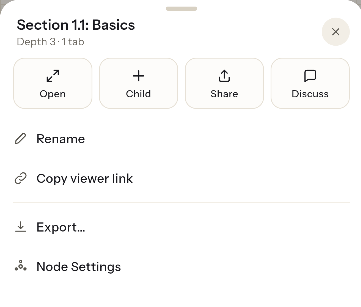
What's in it
Open
- Open in Side Window: opens the content beside the canvas. Only on wide screens.
- Open in Maximized Window: opens the content over the whole window.
Build
- New child node: opens the Create window for this node.
- Rename: edits the title on the canvas.
- Duplicate, Copy, Cut, Paste node as a child, Paste node as a sibling: see Duplicate, copy, cut and paste nodes.
- Move node backward, Move node forward: changes its place on the ring.
Share
- Hide in viewer or Show in viewer: hides the node from people you share with, or shows it again.
- Share…: creates a link. See Share a node with a link.
- Copy viewer link: copies the link straight away.
- Discuss this node: opens the discussion.
- Export…: saves it as a PDF.
Settings
- Node settings: language, visibility, password.
- Delete: deletes the node and everything under it.
Some items only appear for child nodes: Duplicate, Copy, Cut, Paste node as a sibling, the Move items, Hide in viewer and Delete. Paste items only appear after you copy or cut a node.
Essential Canvas Controls:
Was this article helpful?