Using the node path
2 min readUpdated 9 days agoBy NodeBook Team
Read the path
The node path sits in the top bar: ⌂ › Chapter 2 › Limits › One-sided limits.
- ⌂ is the top of your NodeBook. On someone else's NodeBook it's a globe instead.
- Each name after it is one level down. The last one is the node you're on.
When the path is too long to fit, the levels just under the top fold into …. Click … to see them.
Jump to a level
Click any name in the path to go back to that level.
See what's inside a level
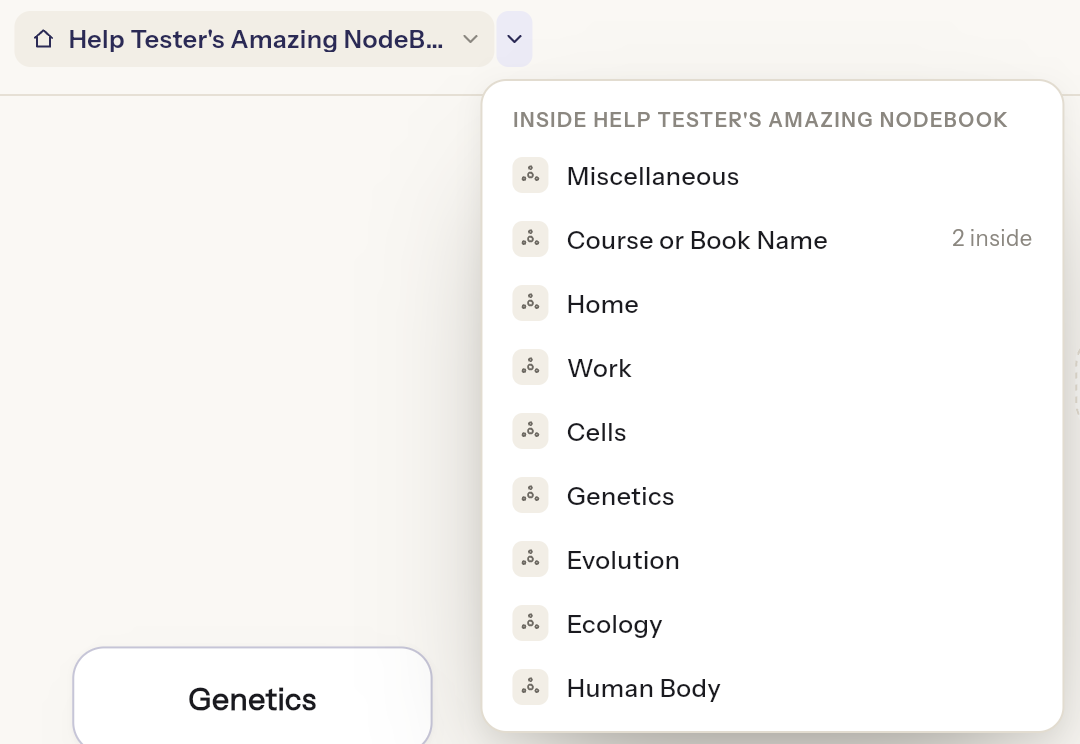
Click the › after a level to list the nodes inside it, then click one to go straight there. If a level has nothing inside yet, the list says so.
The current node's menu
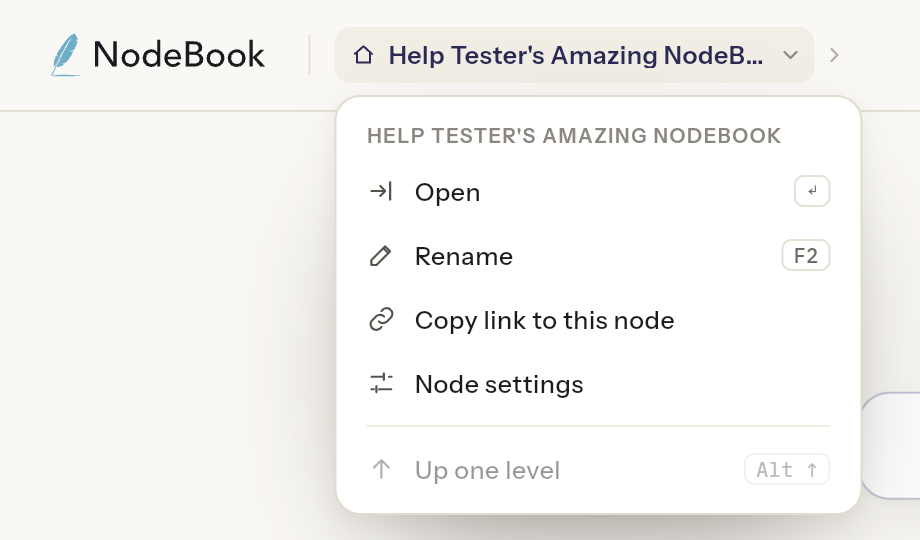
Click the last name in the path, the node you're on, to open its menu:
- Open: opens its content.
- Rename: renames it on the canvas.
- Copy link to this node: copies a link to it. A green Link copied tag confirms it.
- Node settings: language, visibility, password and more.
- Up one level: goes to its parent.
Rename and Node settings only appear on your own NodeBook.
On a phone
The top bar shows just the current node's title. Tap it to open the whole path as a list, and tap any level to go there.
Was this article helpful?