Card, Side and Maximized Window
💡 Pro Tip:
NodeBook remembers the size you last closed the content in, and opens the next node the same way.
Open a node's content
- Click the central node, or double-click a child node.
- Or open the node menu and choose Open in Side Window or Open in Maximized Window.
- Or press Enter or Space to open the central node, and Shift+Enter to open it in the Maximized Window.
Card Window
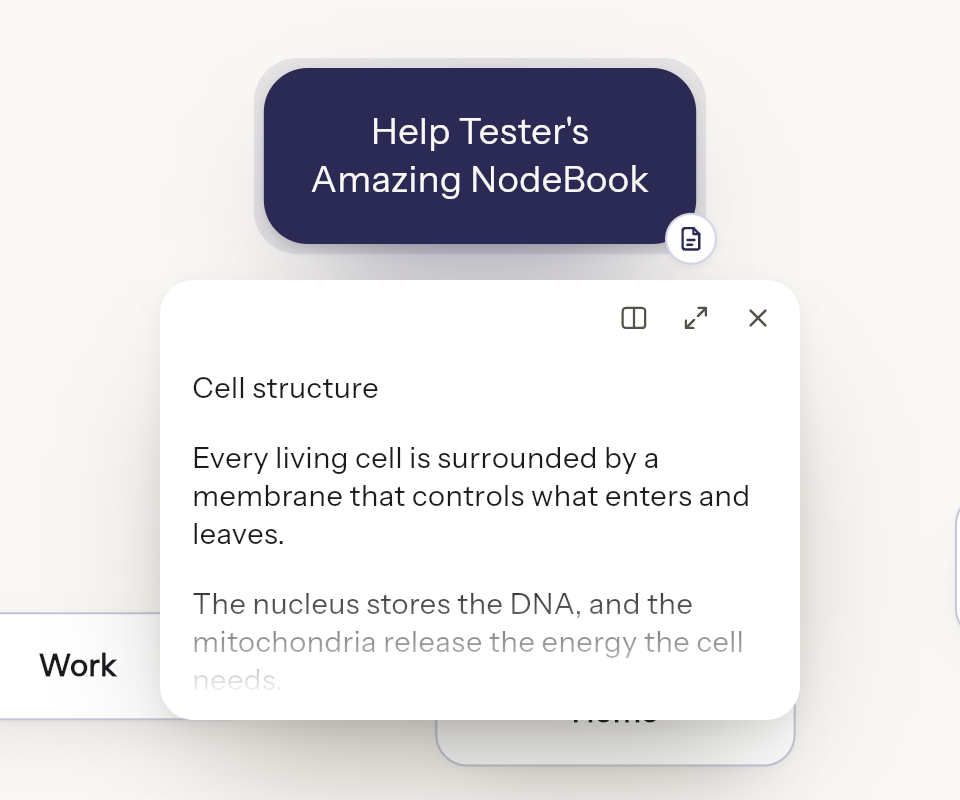
A small card attached to the node. It shows the node's title, the start of its first tab and how many tabs it has. It follows the node as you move around, and the canvas keeps working around it.
The Card Window is for a quick look. It's read-only: to read everything or to edit, switch to the Side Window.
Side Window
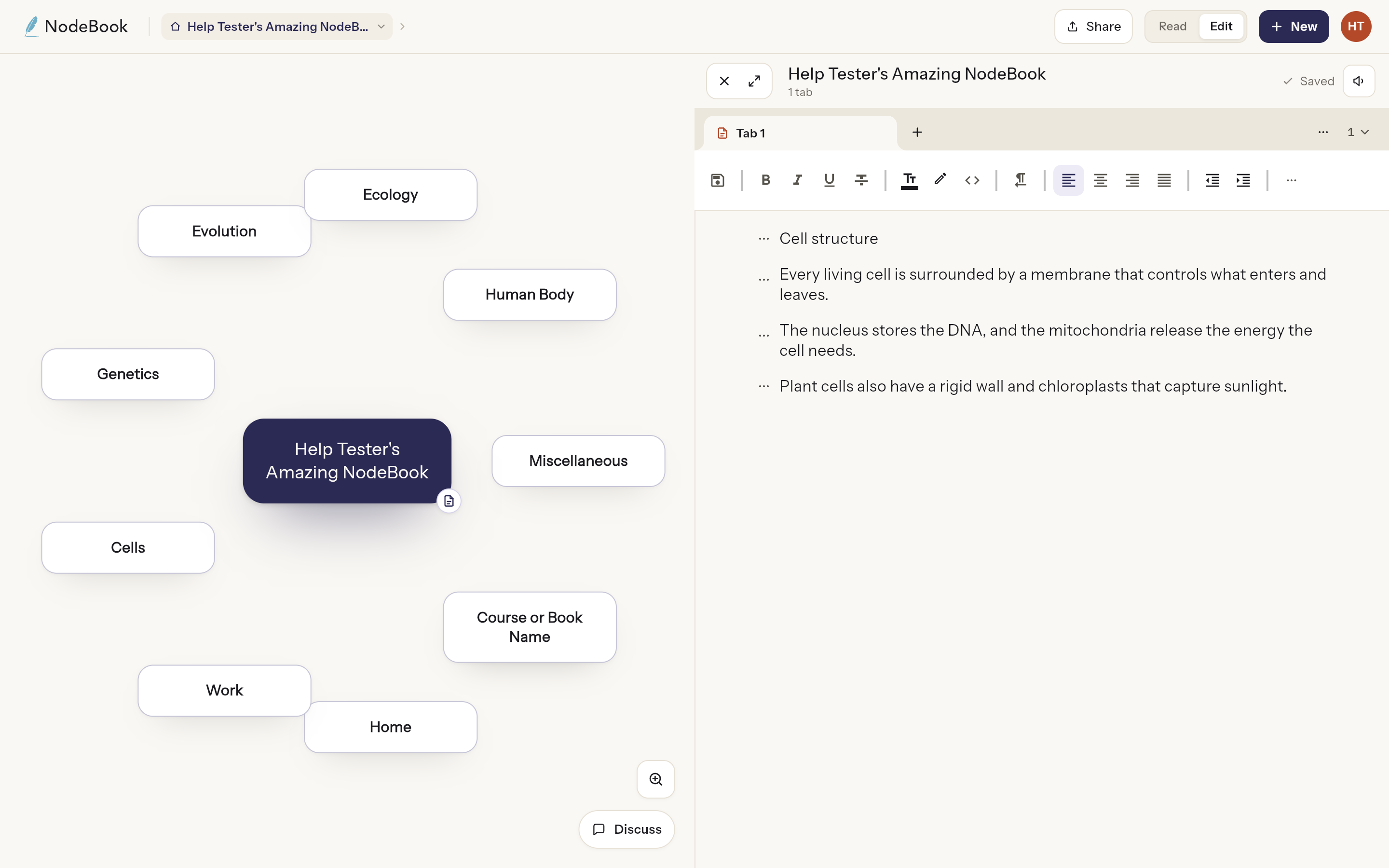
The full content window, with all tabs. On a wide screen it sits beside the canvas, so you can read and still see the tree. On a smaller screen it opens over the canvas.
Maximized Window
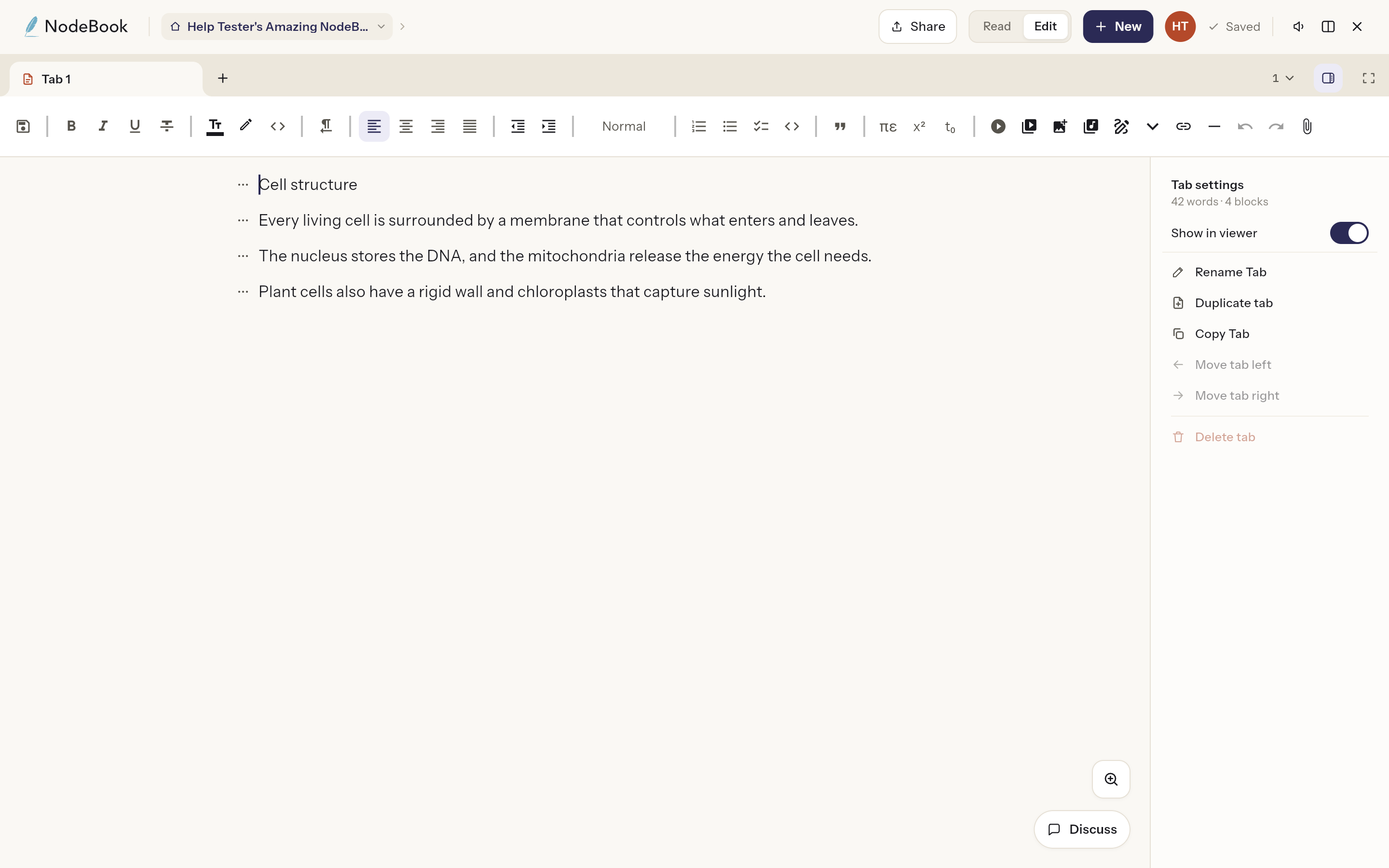
The content fills the whole window, with nothing of the canvas behind it. A sidebar lists the active tab's headings under On this page; click one to jump to it. While editing, the panel also holds the tab's settings. Use Hide sidebar for more room.
Switch between them
When content is open, the top bar shows:
- Card Window (E): a card on the node.
- Side Window (F from the Maximized Window): back beside the canvas.
- Close: back to the canvas.
Essential Canvas Controls:
On a phone
Content opens as its own page, with a back arrow to return to the canvas. When you're not editing, you can shrink it back to a Card Window.
Was this article helpful?